
Editing: the workspace
Understanding the workspace
In all the different editing software programs there is the main working space, which is called the workspace. Here you will find different “panels’ which are block areas where you do different things. In Adobe Premiere Pro, the workspace is distributed automatically, you can arrange the blocks differently to make your work process easier but the standard setting works perfectly. If you are new to the program on your left most likely a “learning” panel will appear which will guide you through the basic aspects of the software. There are also different types of workspaces that you can choose depending on the thing you are focusing on in your video, for example, you will see at the top of the workspace a bar that says: Production, Learning, Assembly, Editing, Color, Effects, Audio, Graphics, Captions, and more. Each workspace’s layout will make it easier to work on each feature.
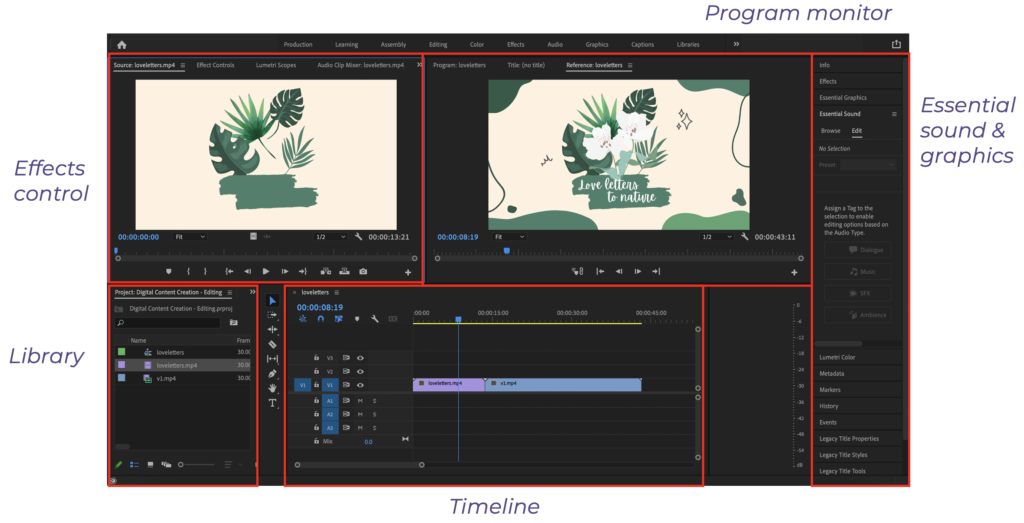
As always, we recommend you spend time on the program, click around, and try discovering what each panel does. A good thing to remember is that when you click on a panel it will become “active” which means certain features will be available and others not depending on the panel that you are on.
You can also rearrange the panels, move them around and close them. If a panel disappears, do not panic! It is an easy fix, you just need to click “Window menu” and then select the panels you want to be displayed. Let’s explain briefly what each panel is:
- Program monitor: this is where the sequence of clips you are assembling will be displayed
- Effects control: lists all the effects that are applied to the currently selected clip
- Library: it contains all the assets you have imported, you can import individual files or folders (remember to keep them organized!)
- Timeline: this is where the magic happens; it is the area where you arrange all your assets. It is laid out in chronological order.
- Essential sound & graphics: here are all the effects (for video, graphics, and sound) the program has. To apply one to a clip find it in the menu, click and drag it to the clip in the timeline.